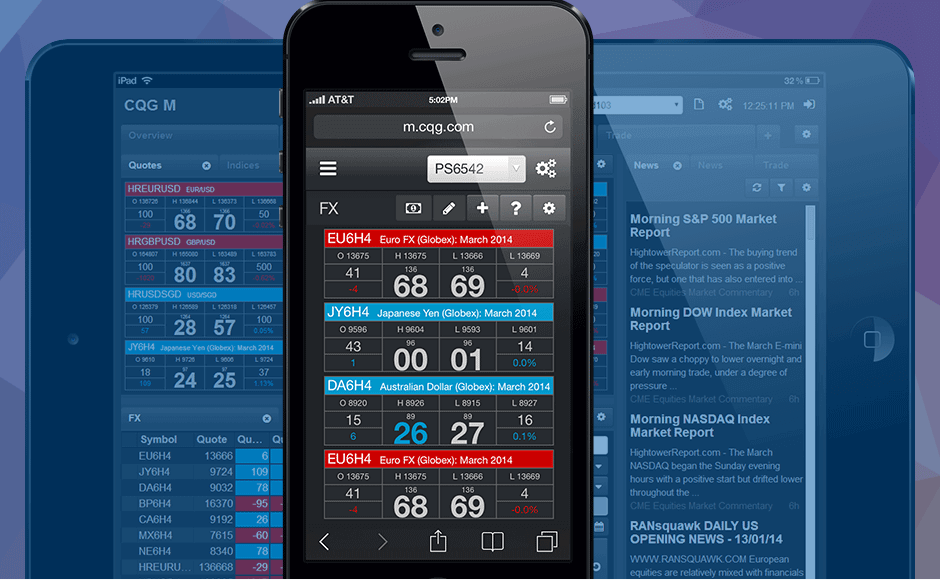
Trade futures with CQG Desktop — a web-based trading platform with professional charts, study tools, and the Hybrid Order Ticket for fast order entry. No software to download, no installations to manage. Works on any modern browser across desktop, tablet, and mobile.
CQG Desktop is a web-based trading platform that runs in any modern browser — no installation, no software to maintain. Built on HTML5, WebSockets, and Protobuf, it delivers professional-grade charting, market data, and order entry across desktop, tablet, and mobile devices. The widget-based interface lets you build your own layout: stack charts, quote boards, the Hybrid Order Ticket, and account monitors however suits your workflow.
CQG Desktop pairs CQG’s market data and execution infrastructure with Discount Trading’s competitive futures commissions and quick account setup. For existing CQG Trader users, switching to CQG Desktop adds charts, heat maps, and account monitors without changing your routing or workflow. CQG has been the industry standard for futures market data since 1980 — more than 45 years of infrastructure backing every trade.
| Feature | What It Does |
|---|---|
| HTML5 Web-Based | Runs in any modern browser. No downloads or installations required. |
| Hybrid Order Ticket | Price-ladder trading interface that functions like a DOM, with one-click order placement at any price level. |
| Advanced Charting | Multiple chart types (bar, line, candlestick) with intervals from tick to monthly, plus a deep library of studies. |
| Study Dialog | One-step interface for adding and managing studies. Filter, search, and configure parameters in a single window. |
| Linked Studies Across Charts | Apply and manage studies across multiple charts at once. Change a parameter once, see it everywhere. |
| Trade From Chart | Show trading buttons directly on the chart. Click a price, place a trade. View working orders inline. |
| Park & Activate Orders | Pre-load orders and activate them later. Combine with GTT duration for hands-free entries and exits. |
| Quote Boards & Heatmaps | Color-coded heatmap view based on percent net change, with widget linking across charts. |
| Cross-CQG Workflow | Account and position visibility across CQG IC, CQG Trader, and CQG Q Trader simultaneously. |
CQG Desktop also includes the Volume Comparison Widget for technical analysis, OCO (one-cancels-other) order pairs for managing exits, a Go Flat function to liquidate positions and cancel working orders for a single symbol or account, and an Options Days to Expiration display for options on futures traders.
Behind the platform, CQG’s network connects to more than 45 exchanges through co-located gateways, with consolidated market data feeds from over 75 sources. The infrastructure layer is the same one used by CQG’s flagship Integrated Client and CQG QTrader products.
CQG Desktop’s feature set is organized into widgets that you arrange on your workspace. Each widget — chart, order ticket, quote board, account monitor — handles one job and can be linked, resized, or hidden. The sections below cover the main functional areas in depth.
Charts in CQG Desktop support multiple types and intervals with a deep library of studies and drawing tools. The same chart can be your analysis surface and your order entry surface — trade buttons appear directly on the chart, and working orders show up as markers on the price axis.
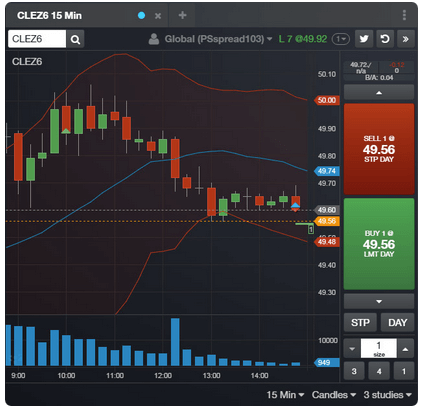
Open bar, line, candlestick, and other chart types from the widget toolbar. Time frames run from tick charts up through monthly bars. Custom intervals are easy to set — in any single-symbol chart, type a comma followed by an interval shortcut (",1" for 1-minute, ",d" for daily) to switch on the fly.
The pointer tools toolbar gives you horizontal and vertical line cursors, trendlines, and other drawing objects. Global crosshairs sync across all charts on a page, so a single hover shows you what is happening at the same time and price on every chart at once. Drawings can be repositioned with handles or removed with a right-click.
Show trading buttons directly on the chart page. Click a price, place an order. Working orders display as lines on the price scale, and you can right-click a working order or fill marker to modify or cancel directly from the chart.
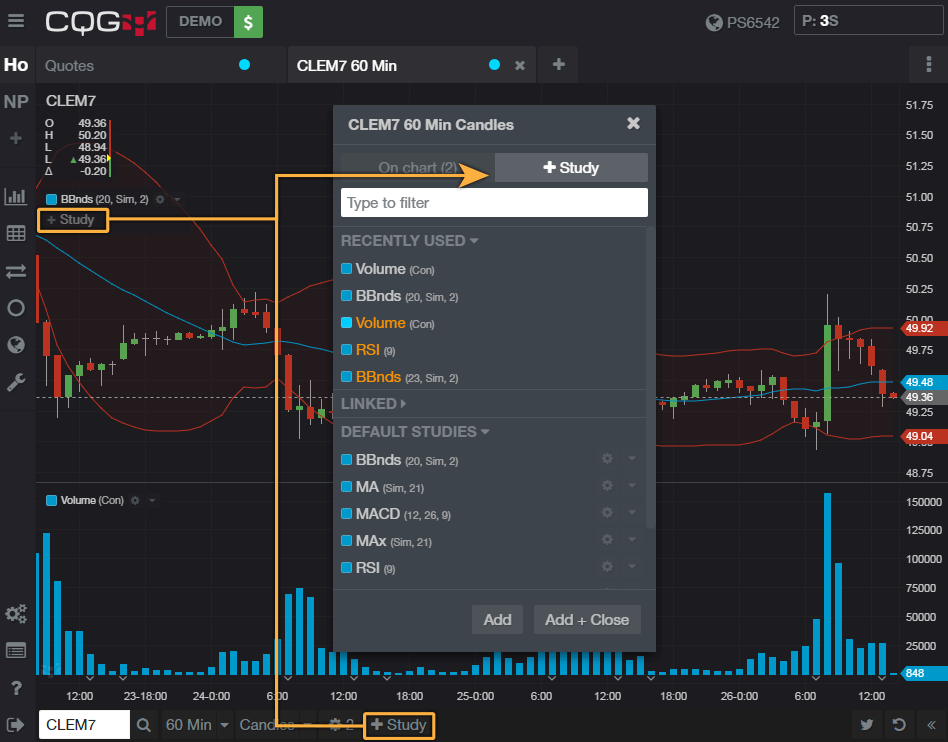
Studies and indicators are added through a single dialog rather than scattered across multiple menus. Click the +Study button in the chart toolbar to open it. Filter the full study list, pick what you want, and configure both math parameters and visual styling in the same window.
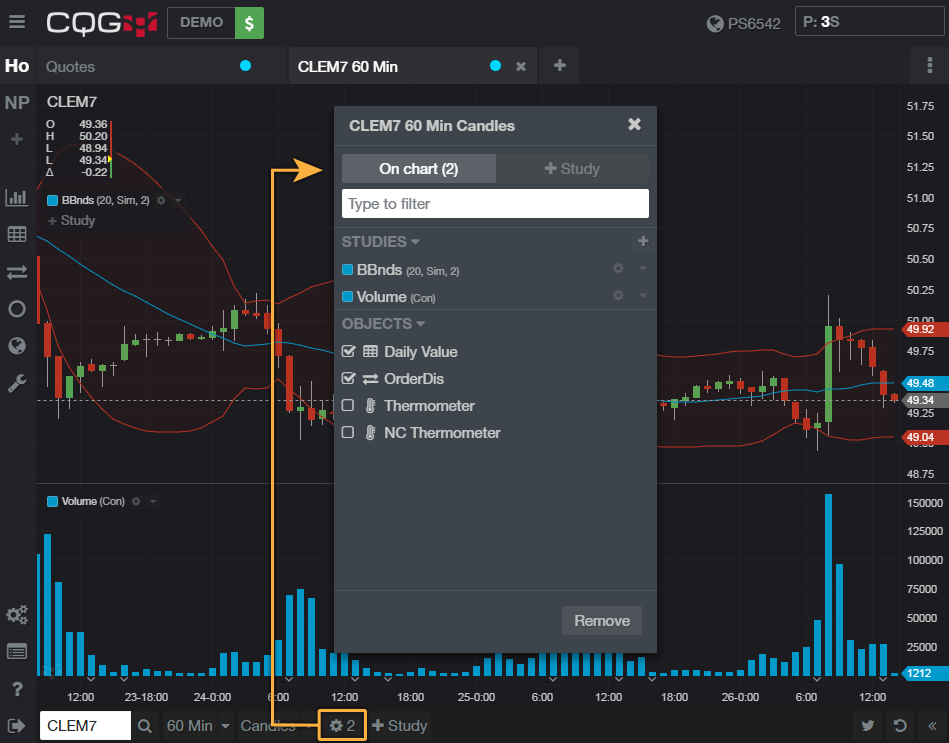
The On Chart tab inside the same dialog shows every study currently displayed and lets you manage them in one place — edit parameters, remove studies, toggle visibility. The gear icon in the chart toolbar opens this window and also displays a count of how many studies are currently active on the chart.
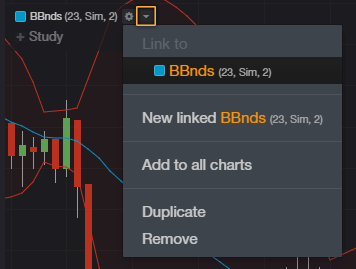
When you are running multiple charts on the same page, you can apply a study to all of them at once via the dropdown next to the study name. Studies can also be linked — meaning a parameter change on one chart updates the same study on every chart it is applied to. Saves time when you are tweaking a setting and want consistency across timeframes.
The Hybrid Order Ticket (HOT) is CQG Desktop’s price-ladder trading interface — functionally equivalent to what other platforms call a DOM (Depth of Market). Open it from the Add Widget menu under the Trade section. Inside the HOT, you see live bid and ask volume at each price level, place orders directly at any price, and modify or cancel working orders inline. Volume Profile can be displayed alongside the ladder for context on the current session versus prior days.
CQG Desktop supports the full range of professional order types and time-in-force settings.
Market, Limit, Stop, Stop-Limit, OCO, Bracket, Iceberg, Trailing Limit, and Trailing Stop — all standard professional types are available.
Day, GTC (Good Till Cancelled), GTD (Good Till Date), GTT (Good Till Time), and Iceberg Day/GTC. Pick the duration that fits your strategy.
OCO (one-cancels-other) order pairs let you set a target exit and a stop loss simultaneously — when one fills, the other cancels automatically. Useful for managing risk on a position without watching the screen.
The Go Flat function cancels all working orders and liquidates positions for a single symbol — or for all symbols on a single account — with one click. Quick exit when you need to clear the deck fast.
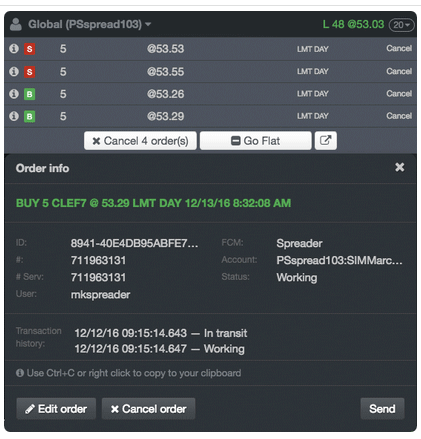
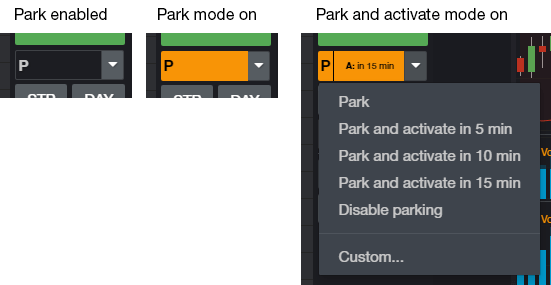
Park orders are pre-loaded but inactive — they do not go to the exchange until you activate them. Combine this with GTT duration to schedule orders that activate at a specific time and expire automatically. Useful for hands-free entries and exits around economic releases or session opens. Park mode must be enabled in preferences before use.
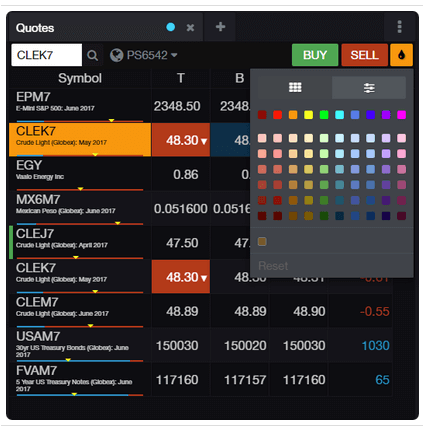
Quote boards are widgets that track lists of symbols with real-time price, change, volume, and other columns. The heatmap style colors and sizes each symbol by percent net change — bigger and brighter when a market is moving hard, dim and small when it is quiet. Quote boards can be linked to other widgets (charts, order tickets) so clicking a symbol in the quote board pushes it to everything else in the link group.

If you also use CQG Integrated Client, CQG QTrader, or the legacy CQG Trader, your accounts and positions appear in CQG Desktop too. Place an order in one product, see it in another. Useful for traders who run a heavier-weight platform on a primary screen and want CQG Desktop available on a tablet or phone as a backup or for monitoring on the go.
Build your own workspace by dragging widgets into place. Save it as a page. Add more pages and switch between them via the left-side bar. Reorder pages by dragging their tabs. Themes and layouts can be adjusted in preferences. The left navigation collapses if you want maximum screen real estate for charts. Multi-monitor traders can detach widgets into separate browser windows.
News widgets bring CME Group Commentary and CME Group Research directly into your workspace alongside your trading widgets. The news widget displays headlines with adjustable font sizes for the latest releases, plus filtering and keyword search.
CQG’s standard monthly platform fee. Exchange data fees are billed separately by the exchanges based on the markets you choose to trade.
CQG Desktop is CQG’s web-based futures trading platform. It runs in any modern browser with no software to download or install, and gives you professional charting, study tools, market data, and order entry across desktop, tablet, and mobile. It is built on HTML5, WebSockets, and Protobuf.
CQG Desktop is $25 per month for platform access. Exchange market data fees are billed separately by the exchanges based on the markets you trade. Discount Trading commission is $0.49 or less per contract commission on standard futures and $0.20 or less per contract commission on micro index futures, plus exchange, clearing, and regulatory fees.
Yes. Because CQG Desktop is web-based, it runs in any modern browser — Chrome, Safari, Firefox, or Edge — on Mac, Windows, Linux, tablets, and phones. There is nothing to install.
CQG One is the newer, more advanced platform in the CQG lineup. It adds TFlow charts, the Spreader add-on, server-side smart orders, CQG Algos, and more price and study alerts. CQG Desktop is the entry-level browser platform and a solid starting point. Both run in a browser and use the same CQG data feed.
CQG Desktop includes the Strategy Builder for building and trading user-defined synthetic strategies. The full CQG Spreader, with its co-located Spreader Core, is an upgrade available in the CQG One and CQG Integrated Client ecosystem. Ask us which option fits the way you trade spreads.
Yes. Discount Trading can set you up with a free CQG Desktop demo so you can test the charts, the Hybrid Order Ticket, quote boards, and simulated trading before opening a live account.
Fill out the form below and we’ll set you up with a CQG Desktop demo account. Explore charts, the Hybrid Order Ticket, quote boards, and the rest of the platform with simulated trading before opening a live account with Discount Trading.